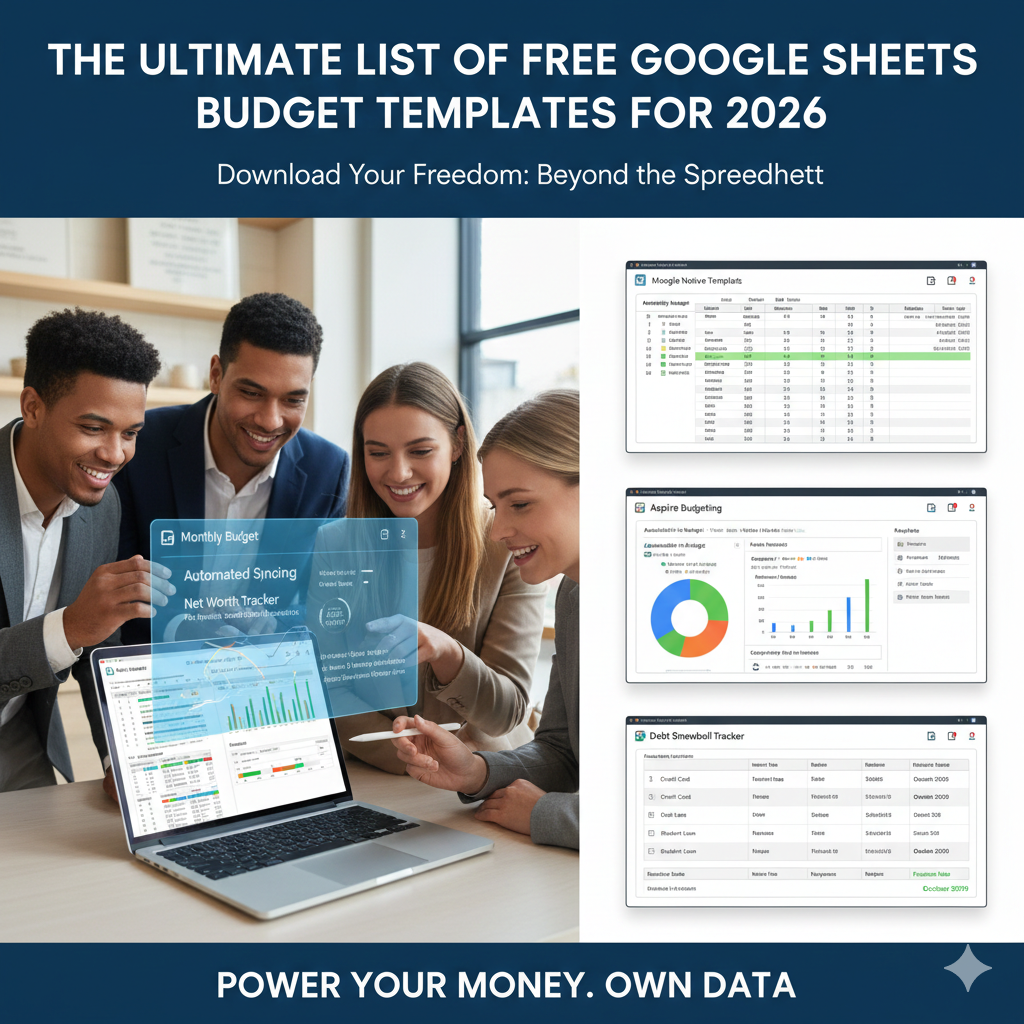
In an era dominated by sleek budgeting apps and subscription-based financial trackers, Google Sheets remains the undisputed king for the financially savvy. Why? Because an app is a “black box” that dictates how you see your money. A spreadsheet, however, is a playground for your own logic, privacy, and long-term financial strategy.
In 2026, the best Google Sheets templates aren’t just rows and columns; they are automated power-tools equipped with Apps Script, real-time dashboards, and custom pivot tables. Whether you are a student managing a refund check or a family of five optimizing a complex supply chain, there is a template designed for your specific “burn rate.”
Contrarian Opinion: Budgeting apps want your data to sell you credit cards; Google Sheets gives you your data back so you can build wealth.
1. The Built-In King: Google’s Native Monthly Budget
Most users don’t realize that a professional-grade budget is sitting right inside their Google Drive. By navigating to New > Google Sheets > From Template Gallery, you can access the “Monthly Budget” template.
- Best For: Beginners and those who want a “mobile-first” experience.
- The Logic: It uses a simple “Planned vs. Actual” comparison.
- The Limitation: It is a single-month view. It doesn’t track your net worth or long-term trends without manual modification.
Pro-Tip: To make this work for a full year, right-click the “Transactions” tab, select “Duplicate,” and rename it for each month. Then, create a summary tab that pulls the totals from each sheet.
2. The Professional Choice: Aspire Budgeting
If you frequent r/personalfinance or r/aspirebudgeting, you know this is the gold standard of community-driven sheets. Aspire Budgeting brings a level of aesthetic and functional depth usually reserved for paid software.
- Zero-Based Logic: Aspire follows the “give every dollar a job” philosophy.
- The Dashboard: It features a stunning visual interface that tracks your category balances, monthly trends, and even your net worth over time.
- Sinking Funds: It has dedicated logic for “Future Expenses” (like that annual car insurance bill), ensuring you never feel “broke” when a big bill arrives.
3. Best for Simplification: The 50/30/20 Rule Sheet
For those who find granular category tracking (e.g., “Dining Out” vs. “Fast Food”) exhausting, the 50/30/20 Rule Sheet is the solution. It focuses on the high-level health of your finances rather than the minutiae.
- The Allocation: 50% for Needs, 30% for Wants, and 20% for Savings/Debt Repayment.
- Visual Motivation: These templates usually feature a large pie chart that shifts in real-time. If your “Needs” hit 60%, the chart turns red, signaling an immediate need to audit your fixed costs.
4. Automating the Sheets: Tiller Money & Vertex42
The #1 reason people quit budgeting is manual data entry. In 2026, you can bridge the gap between “Manual Sheets” and “Auto-Apps” using Tiller Money.
- How it Works: Tiller is a Google Sheets add-on that securely syncs your bank transactions directly into a custom spreadsheet.
- Vertex42 Integration: Many of the world’s most famous templates (from the site Vertex42) are now Tiller-compatible. You get the power of an Excel-style deep dive with the automation of a modern app.
Data Point: Users who automate their transaction feeds are 30% more likely to stick with a budget for more than six months compared to those who enter data manually.
5. Building the “Debt Snowball” Into Your Sheet
A budget tells you where you are; a Debt Snowball tracker tells you where you’re going. Most high-quality free templates now include a dedicated debt tab.
- Snowball vs. Avalanche: The template allows you to toggle between paying off the smallest balance first (for psychological wins) or the highest interest rate first (for mathematical efficiency).
- The “Freedom Date”: By entering your monthly “extra” payment, the sheet calculates exactly which month and year you will be debt-free.
6. Privacy and Security: Guarding Your Financial Vault
Since you are storing sensitive financial data in the cloud, you must treat your Google Sheet like a bank vault.
- Two-Factor Authentication (2FA): Ensure your Google Account is locked behind a hardware key or authenticator app.
- Avoid “Public” Sharing: Never set your sheet to “Anyone with the link can view.” Use specific email invitations only.
- Audit Add-ons: Only use trusted third-party scripts. If a sheet asks for permission to “view and manage all your files,” proceed with extreme caution.
7. Advanced Logic: Sinking Funds and Variable Costs
One of the biggest flaws in basic budgets is ignoring “irregular” expenses. A Sinking Fund is a category where you save a small amount monthly for a future large expense.
- The Formula:
Total Cost / Months until Due = Monthly Savings Goal. - The “Hidden” Balance: Advanced sheets keep these funds in a separate “virtual” pile so you don’t accidentally spend your Christmas fund on a random Tuesday lunch.
8. Mobile Optimization for Google Sheets
Google Sheets is powerful on a desktop but can be clunky on a phone. To make your budget usable “in the wild”:
- The “Quick Entry” Tab: Create a simplified tab with just two columns: “Amount” and “Category.” Use this for on-the-go entries, then move them to the master list when you’re at your desk.
- Dropdown Menus: Use Data Validation to create dropdown menus for your categories. This prevents typos that break your summary formulas.
Conclusion: Transitioning from Sheets to Apps
When does a spreadsheet become “too much”? If you find yourself spending more than two hours a week managing the sheet’s logic rather than your money, you may have “graduated” to a professional app.
- The Pivot: If you need real-time alerts or complex multi-user syncing for a large family, moving to a paid tool like YNAB (You Need A Budget) is the logical next step.
Final Call to Action: Download one of the templates mentioned above—start with the Aspire Budget or the Native Google Template—and input your last three transactions. It takes five minutes to stop guessing and start knowing.
Leave a Reply